
WindowBlinds 11 themes don't work in Windows 11 Pro

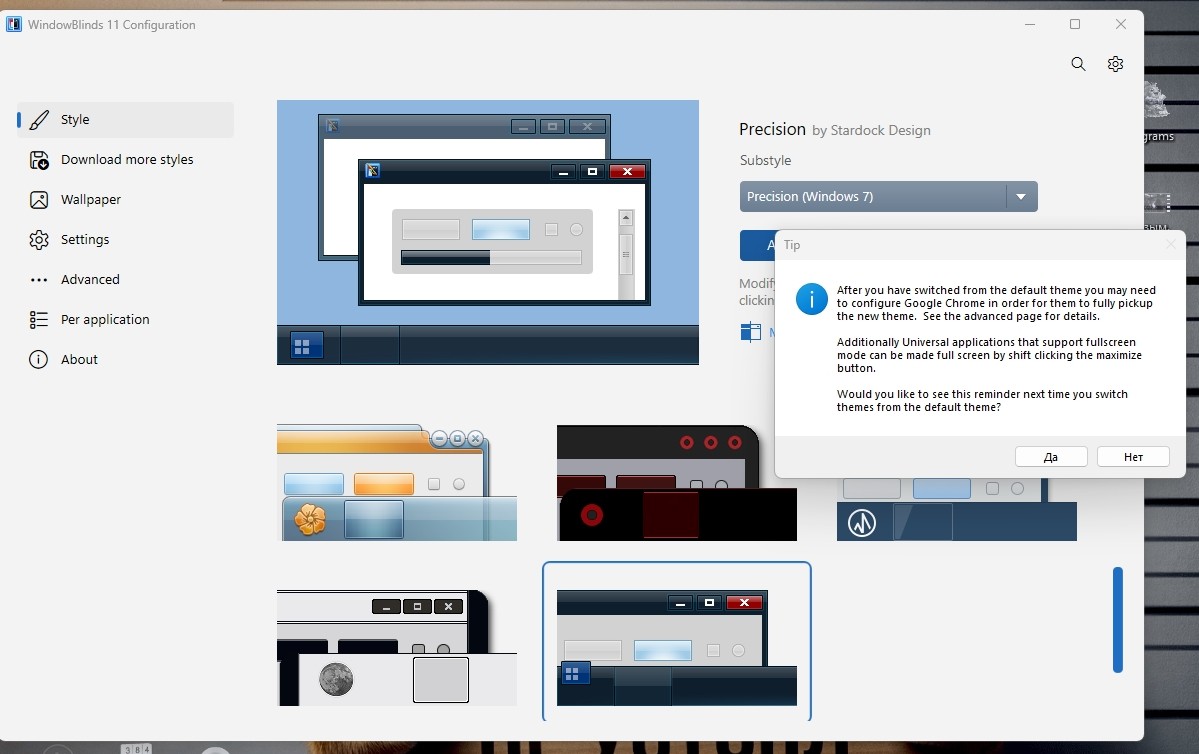
When enabling the WindowBlinds 11 theme in Windows 11 Pro, the following message appears:

After you have switched from the default theme you may need to configure Google Chrome   in order for them to fully pickup the new theme/ See the advanced page for details. 

Additionally Universal applications that support fullscreen mode can be made full screen by shift clicking the maximize button.

Would you like to see this reminder next time you switch themes from the default theme?
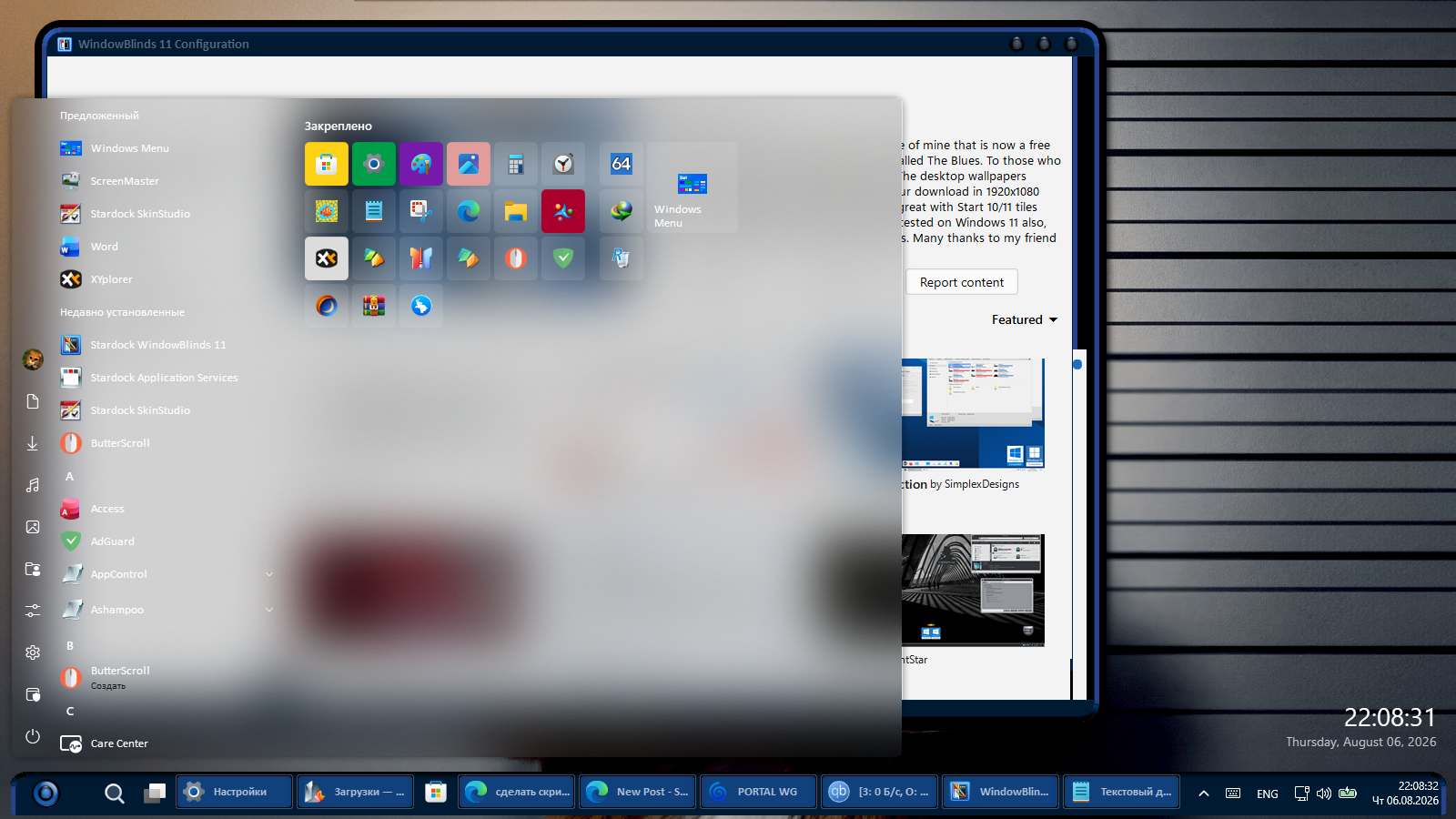
Only the taskbar and Explorer windows have been changed. The Start menu remains from Start11. The wallpaper remains from DeskScapes2026.
Windows 11 Pro

26H1

28000.2608

I need your help setting up themes in Stardock WindowBlinds 11.

1,215 views 4 replies
Reply #1 Top

Hello,

Sorry to hear you’re having issues. From what I understand, that prompt is simply a reminder when applying a WindowBlinds style. If you don’t want to see it again, just click “No”, it shouldn’t reappear when you apply another style.

As for Start11 integration, WindowBlinds can only change the Start panel for the Windows 7, Windows 10, and Windows 11 styles, provided the designer included those layouts in the theme. Most designers usually only create themes for the Windows 7 style.

Regarding wallpapers bundled with a WindowBlinds style, you’ll need to apply them manually. I haven’t found a setting that automatically applies the included wallpaper. I vaguely recall this being possible in older versions of WindowBlinds, but not in the current one.

Thank you,

Basj,

Stardock Community  Assistant

Reply #2 Top

In older versions of Windows, WindowBlinds completely changed the desktop (wallpaper, taskbar, Start menu, and File Explorer windows). It's a shame this doesn't work in Windows 11. 🤔

Reply #3 Top

Lest see if I can post something thta makes sense.

Windows 11 Pro with Start 11 and Windowblins (latest)

So If you setup Start 11 and center the start menu with a Windows 10 Pro style, Then try to apply an oder theme, well the start menu is not going to work.

You have to put it back on the left side and use something like a Windows 7 look a like and then it will.

Took me too long to figure this out.

Dave

Reply #4 Top
Quoting Hagar800, reply 4148105

Lest see if I can post something thta makes sense.

Windows 11 Pro with Start 11 and Windowblins (latest)

So If you setup Start 11 and center the start menu with a Windows 10 Pro style, Then try to apply an oder theme, well the start menu is not going to work.

You have to put it back on the left side and use something like a Windows 7 look a like and then it will.

Took me too long to figure this out.

Dave

End of Hagar800's quote

Hello,

Sorry to hear you’re having issues. As far as I know, WindowBlinds themes generally only work with the Windows 7‑style Start menu in Start11. The Windows 10 and 11 styles require special assets to display correctly, and since most older WB skins haven’t been updated, they don’t include support for those newer Start panel styles.

Regarding the problem with the centered Start button causing your Start panel not to work, we’ll need more details to understand what’s happening. If you’d like us to help troubleshoot further, please create a new thread with your issue so we can assist you there.

Thank you,

Basj,

Stardock Community Assistant