


How to Keep Your Desktop Private While Screen Sharing
Exploring Fences 7's innovative new feature
 Stardock Forums
Sharing your screen is something many of us do daily, whether we're in meetings or streaming games. But keeping your desktop content private isn't always easy. Most of us use the desktop for downloads, screenshots, and files we're actively working on, and all of that can end up on display when you forget that you are sharing your entire screen.
The usual solution is to move everything into a folder or onto another monitor, but that means remembering to do it every time and disrupting your desktop layout but thankfully, there is an easier way.
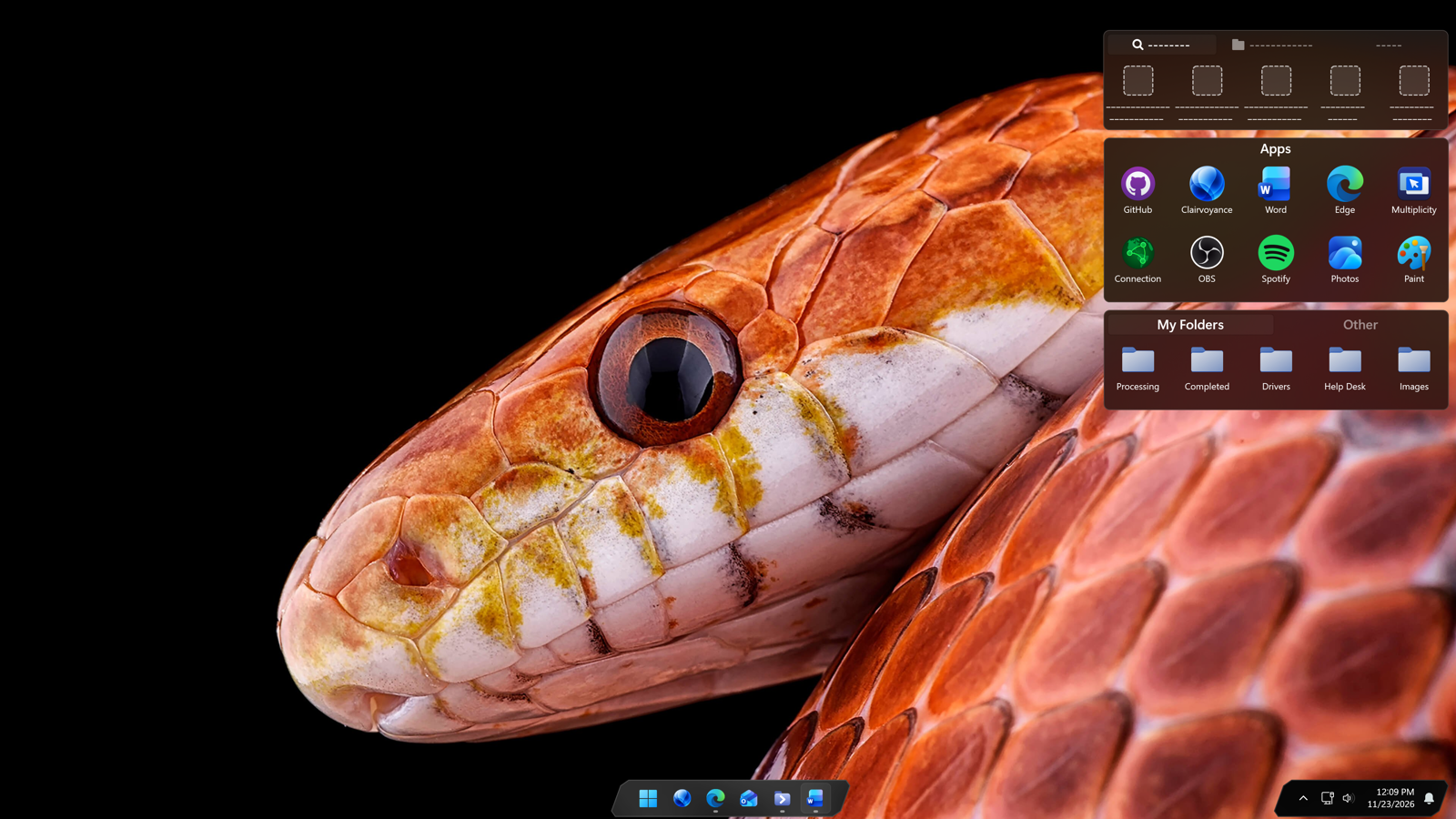 Fences 7 Privacy Masking (Top Right) and Start11 v3 Taskbar
With privacy mode in Fences® 7 , file names and icons are masked when your desktop isn't in focus. Whether you're presenting, gaming, or working in another app, your desktop content stays private without moving or reorganizing anything. The Fence group in the top right corner has masking applied to it and when you move your mouse over it, all icons return to being fully visible for easy interaction.
Privacy mode is also useful when working in public spaces like coffee shops, airports, or offices where others can see your screen. You get the privacy you need without sacrificing the quick access to files and applications that makes Fences so useful.
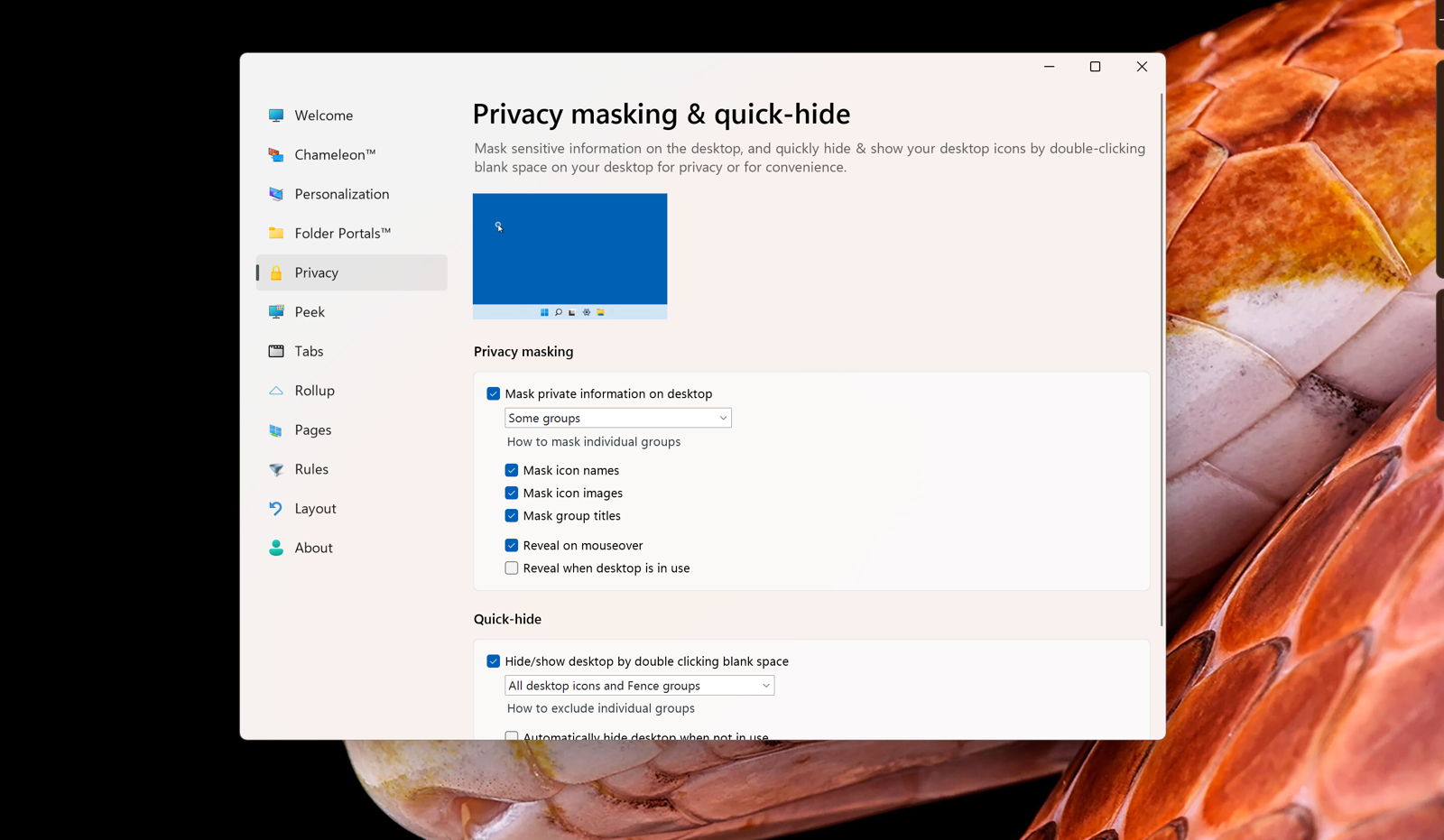 Fences 7 configuration panel showing privacy options
To enable the feature, open up the Fences 7 configuration panel, click Privacy, and check the option "Mask private information on desktop". And like all Stardock products, you can configure this several different ways to mask only specific content or all content.
Privacy Mode is just one of the new features in Fences 7, alongside Windows 11 Mica styling, light and dark modes, and powerful search and filtering within Folder Portals™. Fences 7 is available today starting at $10 and is also included in Object Desktop.