Bug: Start11 menu alternates with the default Windows 11 Start menu

Windows Version Number: Windows 11 25H2 (26200.9457)
App Version: 2.81

Description

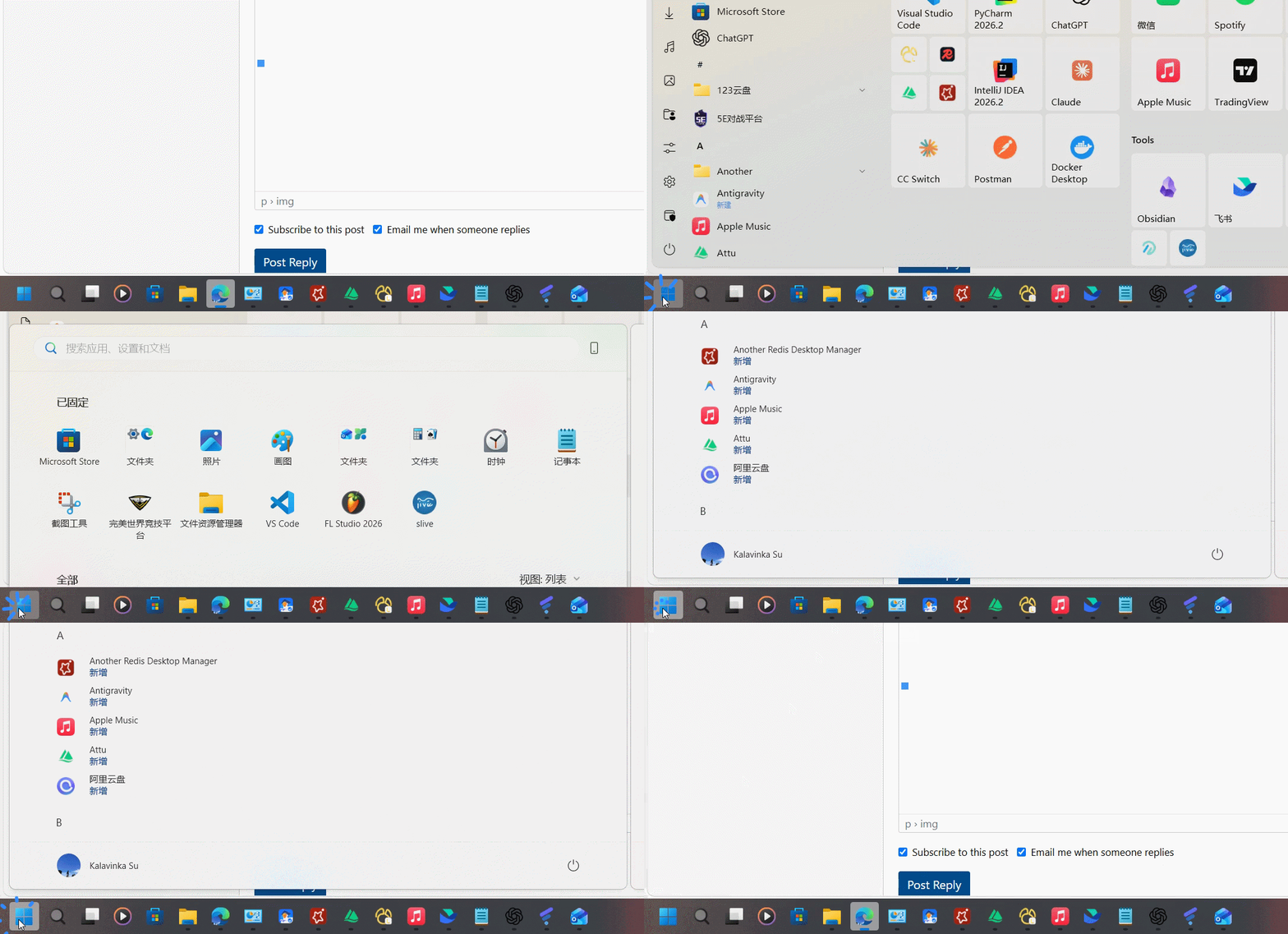
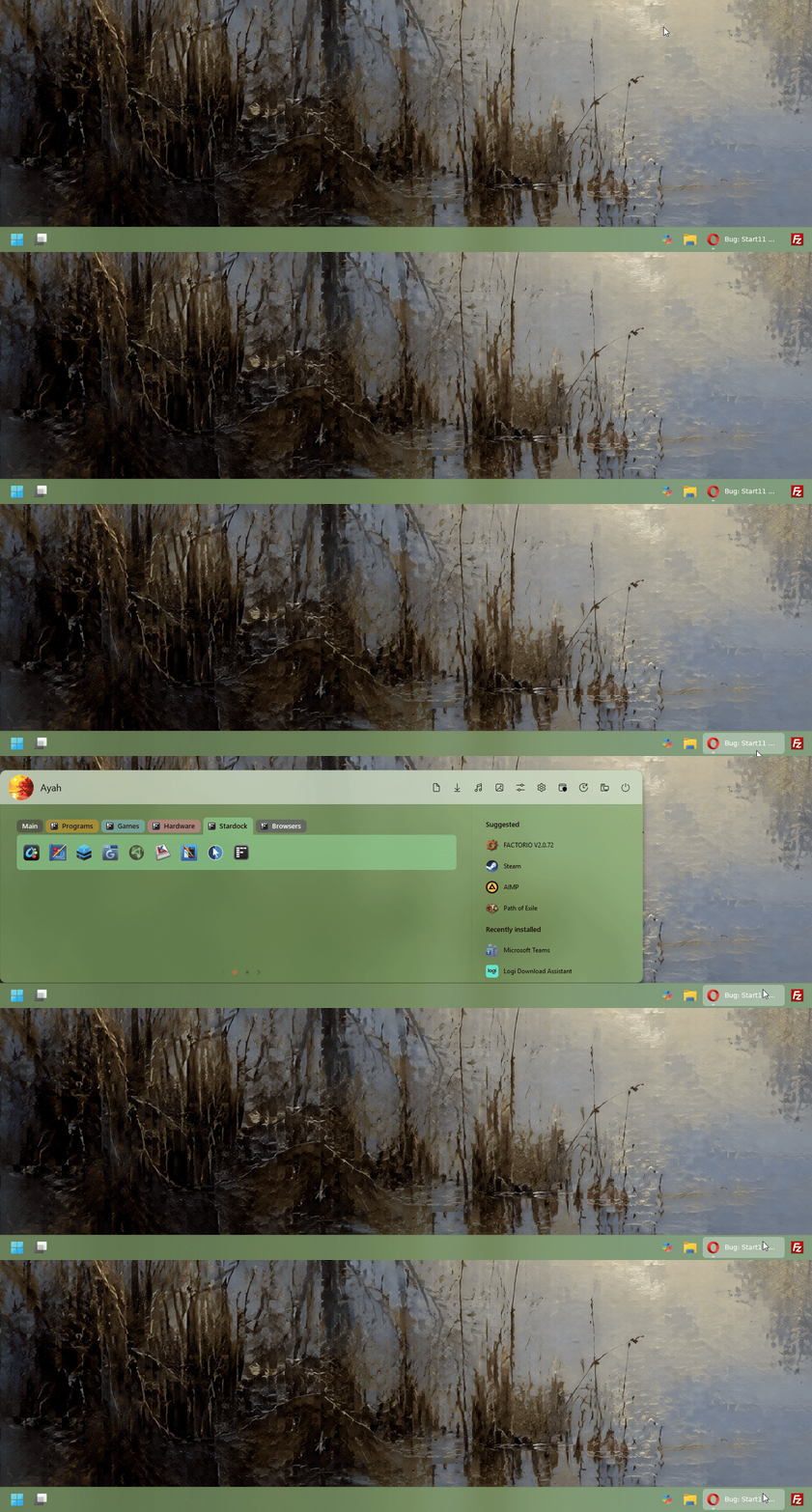
When I press the Windows key or click the Start button on the taskbar, the Start menu alternates between the Start11 menu and the default Windows 11 Start menu.

This issue has been occurring consistently for a long time.

Steps to reproduce

  1. Press the Windows key or click the Start button on the taskbar.
  2. The Start11 menu appears.
  3. Press the Windows key or click the Start button again.
  4. The default Windows 11 Start menu appears instead.
  5. Press it again.
  6. The Start11 menu appears again.

The menus continue to alternate between Start11 and the default Windows 11 Start menu each time I press the Windows key or click the Start button.

Expected behavior

The Windows key and the taskbar Start button should always open the Start11 menu when Start11 is configured as the default Start menu.

Actual behavior

The Windows key and the taskbar Start button alternate between the Start11 menu and the default Windows 11 Start menu.

This issue has been present for a long time and occurs consistently.
363 views 9 replies
Reply #1 Top

Hello,
Sorry to hear you are having issues. But, I can't reproduce the issue you see on your system. This is what I get when pressing Windows button on my keyboard while moving my mouse around.


Would like to suggest trying uninstall Start11, reboot immediately (important), download latest version available in your account product download page: https://store.stardock.com/myaccount/products. Install it, reboot immediately again. Retest it and report back.

Thank you,
Basj,
Stardock Community Assistant.

Reply #2 Top

 After completely uninstalling and reinstalling Start11, then restarting my PC, it initially works fine with only the Start11 menu appearing. However, it eventually starts alternating between the Start11 menu and the default Windows 11 menu. Interestingly, as long as I don't click the Windows icon in the bottom-left corner and only press the Windows key, it seems to work properly. 


Reply #3 Top

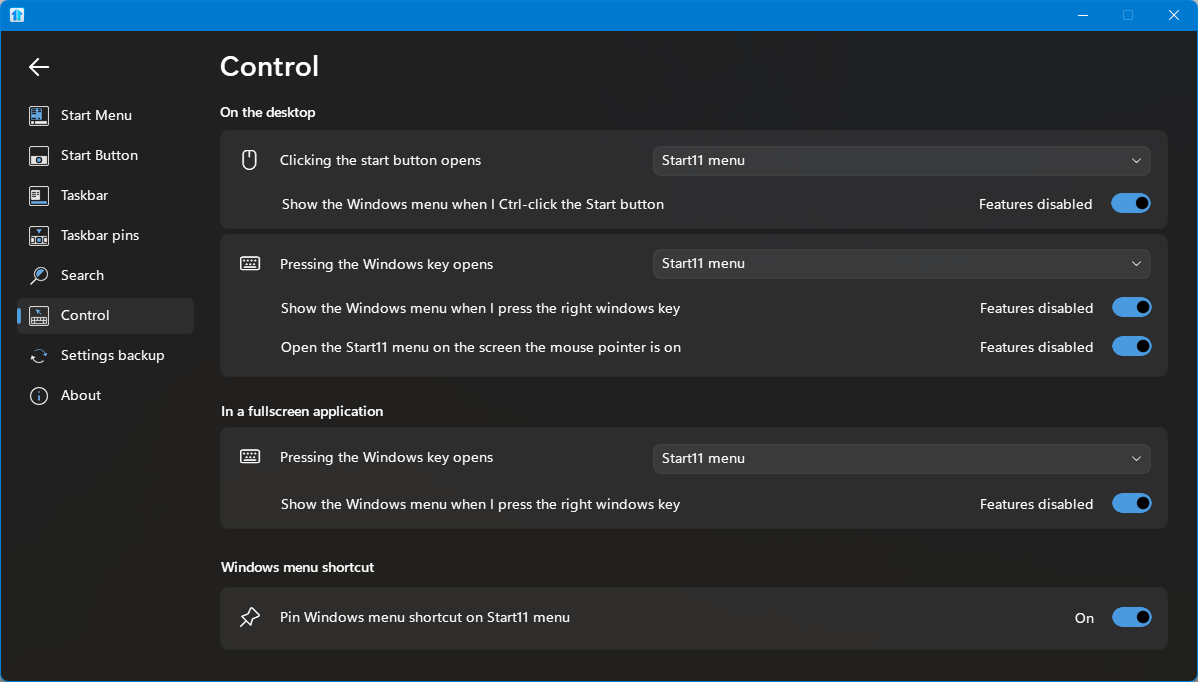
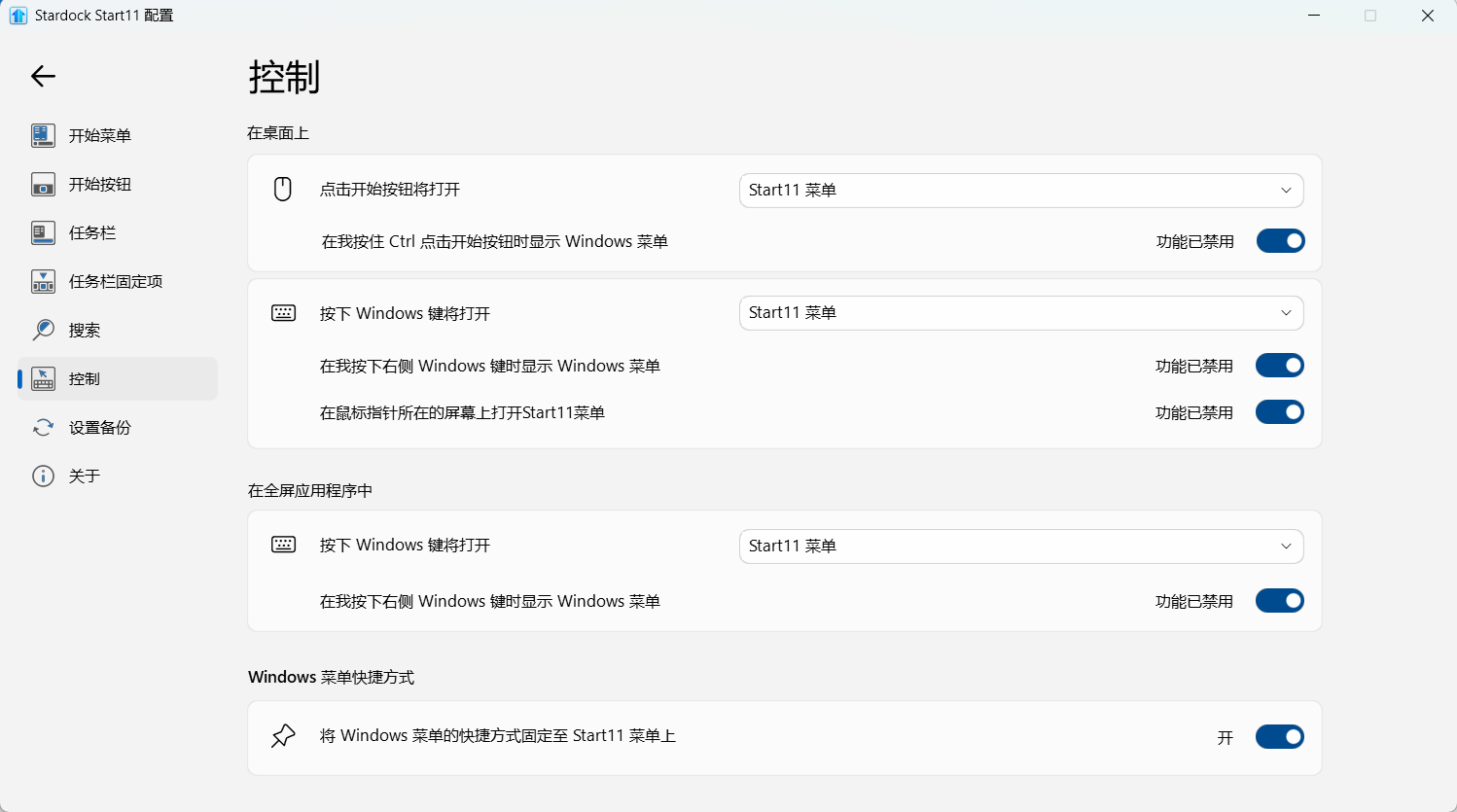
In my system pressing the Windows key and click the mouse on the Start button produce the same result.  Please check your setting in the "Control" tab:

Thank you,

Basj,
Stardock Community Assistant

Reply #5 Top

Next please check your system files: 

Please try the following:

-Open the Start Screen, and type 'cmd'. Right-click on the search result and select 'Run as administrator' from below.

-Type: sfc /scannow

-Wait for the scan to complete (this can take several minutes)

Some help on how this looks should you need it:

https://support.microsoft.com/en-us/help/929833/use-the-system-file-checker-tool-to-repair-missing-or-corrupted-system

If the SFC finds errors, but cannot fix them, please also run the following command in the same command prompt window:

dism.exe /online /Cleanup-Image /RestoreHealth

Some help on how this looks should you need it:

https://www.windowscentral.com/how-use-dism-command-line-utility-repair-windows-10-image

The above command should assist with replacing any damaged or problematic system files. Please note, however, since it may require restoring certain files, this process can take some time and you will need to be patient until it has completed.

Please let me know whether this resolves your problem or if you have any additional questions.

Thank you,

Basj,
Stardock Community Assistant

+1 Loading…
Reply #6 Top

Thanks for the reply. Unfortunately, I’ve tried the suggested solutions in the staff response, but the issue still persists.

Interestingly, after restarting my PC, Start11 works normally again. However, I usually don’t shut down my computer when I’m not using it; instead, I put it to sleep. I’ve noticed that the issue may occur when I wake the PC from sleep and log back in.

Could this bug be related to the sleep/resume process, rather than a full system restart? Has anyone else experienced similar behavior?

I’d appreciate any further suggestions or troubleshooting steps. Thanks!

Reply #7 Top

When you see the issue appear after wake from sleep, please do Explorer.exe restart, see if the issue resolved after the restart. Here are Steps you can do to restart the Explorer.exe: 

Using Task Manager (Fastest Method)
    • Press Ctrl + Shift + Esc on your keyboard to open Task Manager.
    • Click the Processes tab on the left or top menu.
    • Scroll down to find Windows Explorer (or explorer.exe).
    • Right-click on Windows Explorer and select Restart.
    • Your taskbar and desktop icons will disappear for a brief moment and then reload automatically. 
Using Command Prompt (Alternative Method)
    • Press the Windows Key + R to open the Run dialog box.
    • Type cmd and press Enter to open the command line.
    • Type taskkill /f /im explorer.exe and press Enter to close the frozen explorer.
    • Type start explorer.exe (or just explorer) and press Enter to bring the desktop and taskbar back.

Thank you,
Basj,
Stardock Community Assistant

Reply #8 Top

Restarting explorer.exe does seem to resolve the issue temporarily, but is there a permanent fix for this bug?

Do you know what is causing the Start11 menu to alternate with the default Windows 11 Start menu in the first place? It would be great if the underlying cause could be identified and addressed, rather than having to restart Explorer every time the issue occurs.

Has a permanent fix been identified or is one planned for a future update?

Thanks for your help!

Reply #9 Top

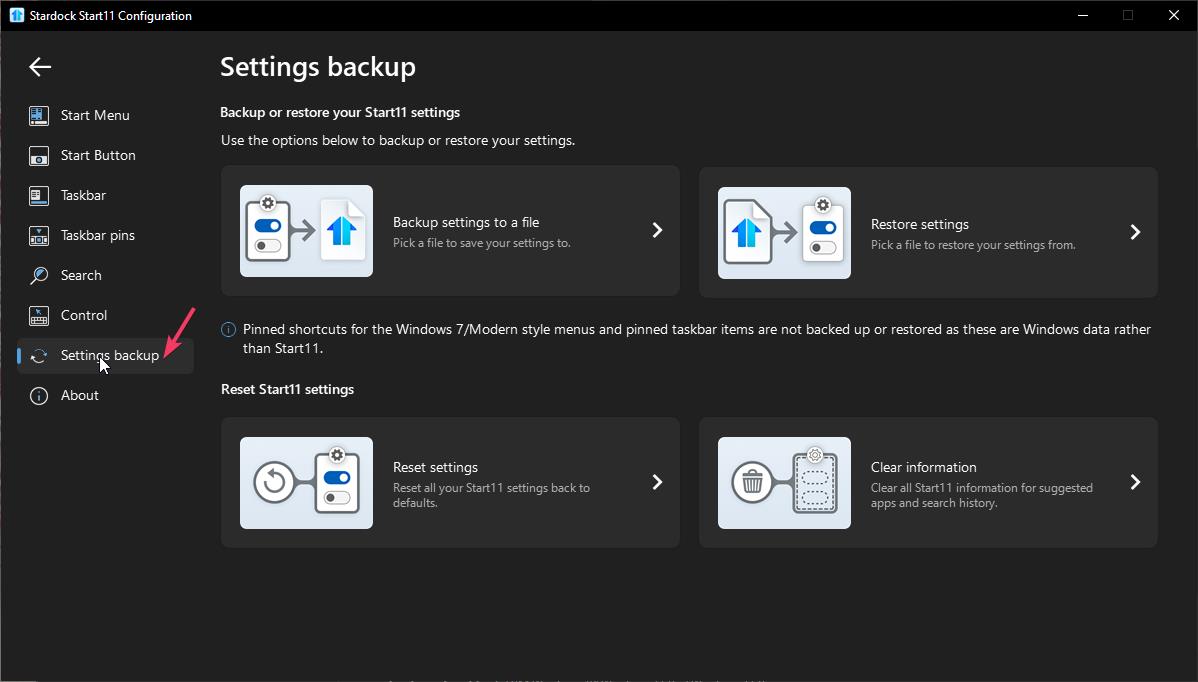
Perhaps, corrupted Start11 settings. Try these steps.

  1. Save your current setting. 
  2. Do the Reset settings.
  3. Reboot the system and see if the issue still there. 

Report back.

Thank you,
Basj,
Stardock Community Assistant