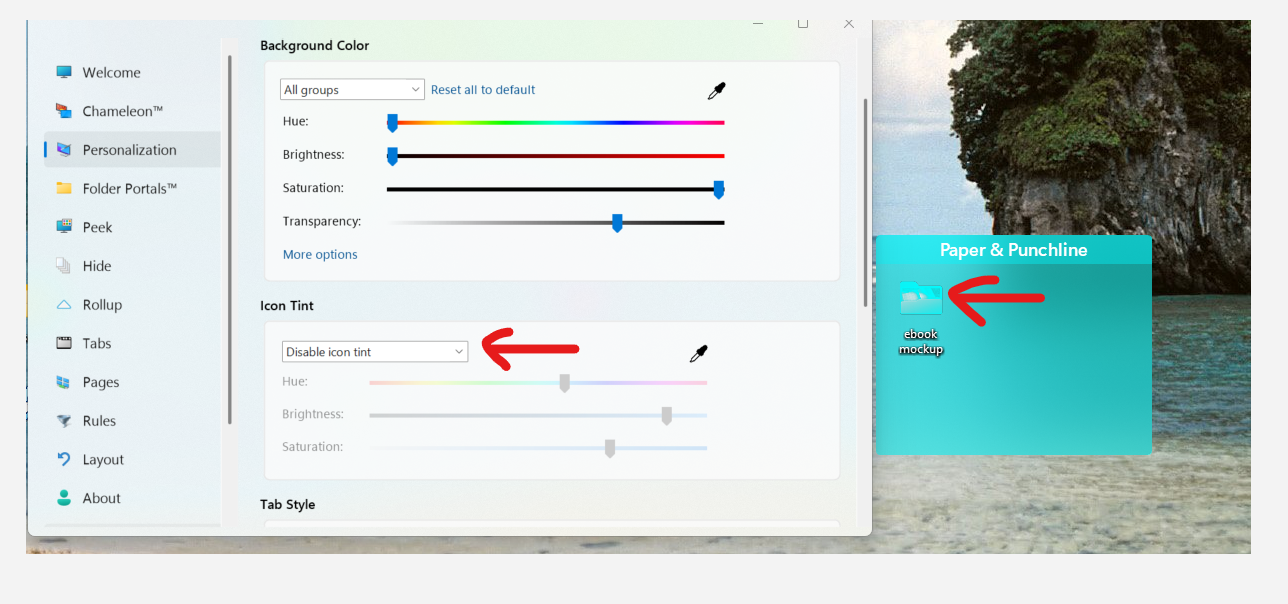
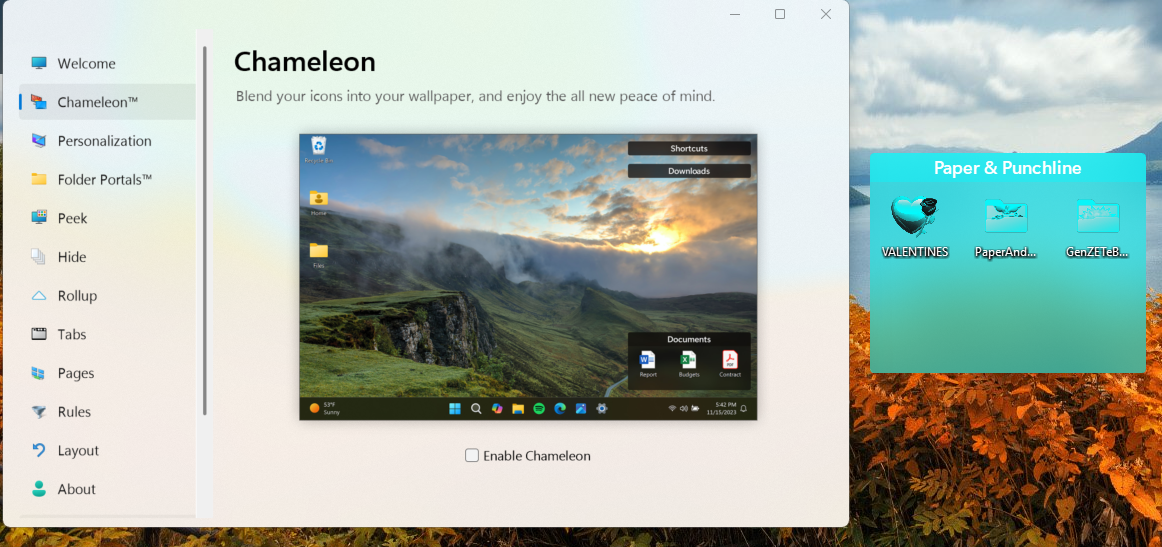
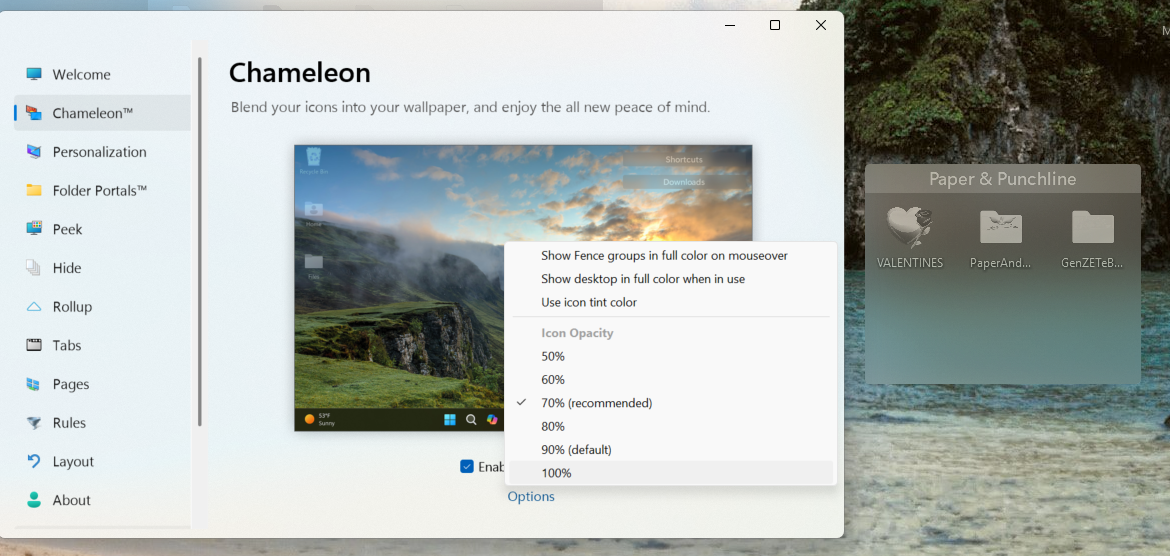
For some time now, my app icons and folders have been automatically adopting this Fence color , even though I have 'Disable icon tint' enabled in my Fences settings. I do not want the icons and folders
simple logo maker to take on this themed/fancy color. I prefer them to keep their original appearance.
I am running the latest version of Stardock Fences: 6.20.
What can I do to completely prevent this tinting behavior and force the icons/folders to stay in their default colors? Thank you for your help!
End of quote
✅ 1. Turn Off Windows Accent Coloring (Most Common Cause)
Windows can force accent colors onto desktop elements, which Fences then inherits.
Go to:
Settings → Personalization → Colors
Then:
-
Turn Off: “Show accent color on Start and taskbar”
-
Turn Off: “Show accent color on title bars and window borders”
-
Set Accent color to Manual (not Automatic)
Restart Explorer after changing this:
-
Press Ctrl + Shift + Esc
-
Find Windows Explorer
-
Click Restart
✅ 2. Disable Themed Fence Backgrounds
In Fences:
-
Open Fences Configure
-
Go to Appearance
-
Make sure:
-
Turn OFF:
✅ 3. Check Windows High Contrast or Theme Sync
Go to:
Settings → Accessibility → Contrast Themes
Make sure Contrast Theme is OFF.
Also check:
Settings → Personalization → Themes
Try switching temporarily to the default Windows theme.
✅ 4. Disable Icon Tinting via Registry (Advanced – Only if Needed)
If the tint persists, Windows may be forcing colorization.
-
Press Win + R
-
Type: regedit
-
Navigate to:
-
Look for:
Set it to:
Restart your PC.
(Only do this if you're comfortable editing the registry.)
✅ 5. Fully Reset Fences Appearance (If Nothing Works)
-
Open Fences Configure
-
Go to About
-
Click Reset Fences settings
-
Reboot
This clears corrupted appearance profiles that sometimes cause forced tinting.



 Stardock Forums